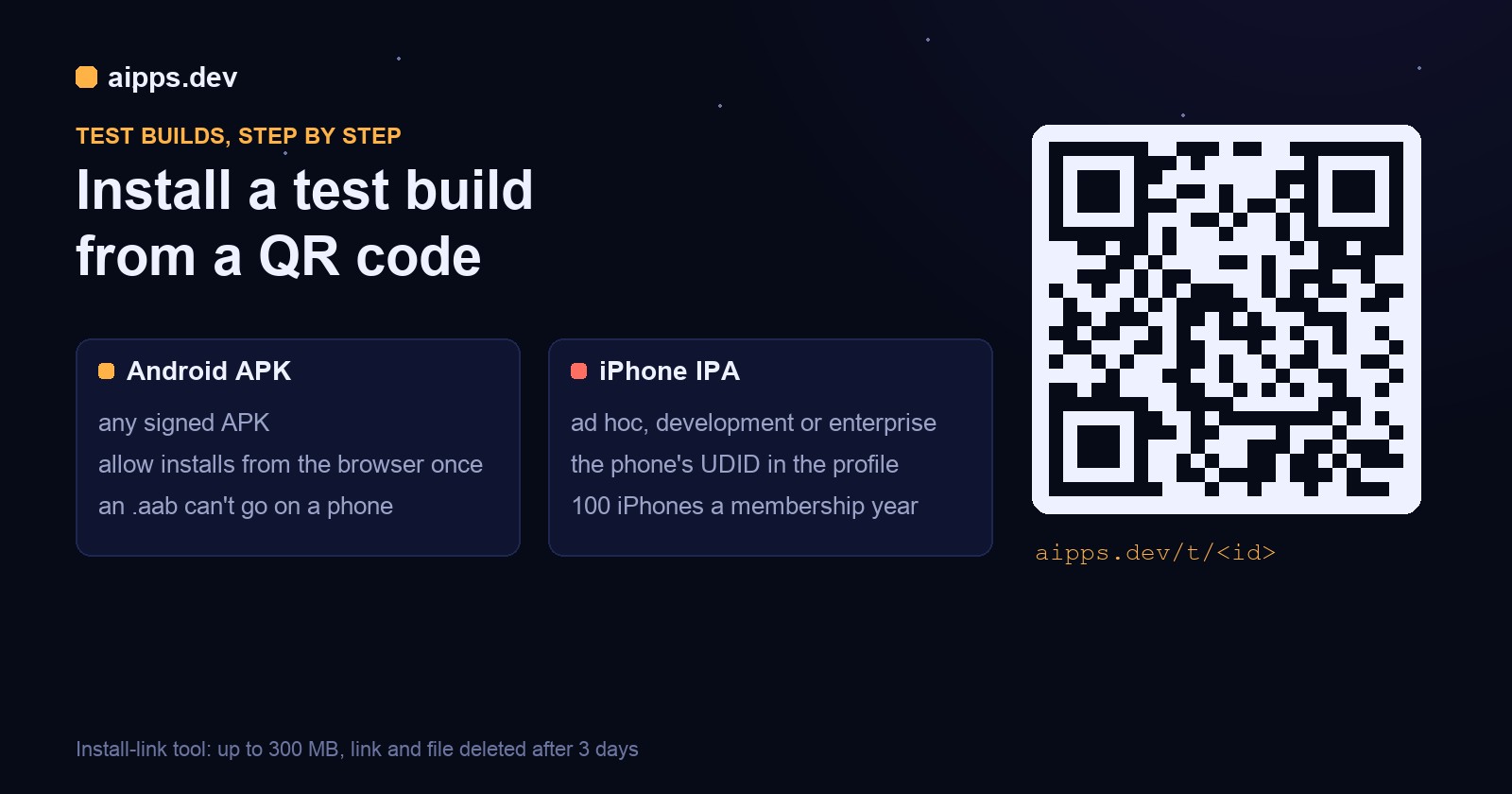
A tester needs today's build on their phone, and the store isn't the way to get it there: Play's internal track and TestFlight both want an upload, processing and, for TestFlight external testers, a review. The faster route is a link and a QR code. The tester scans it, the phone downloads the file, and the app is on the home screen a minute later. On Android that works for almost any build. On an iPhone it works only for builds signed for that phone, and most failed iPhone installs come down to that one rule.
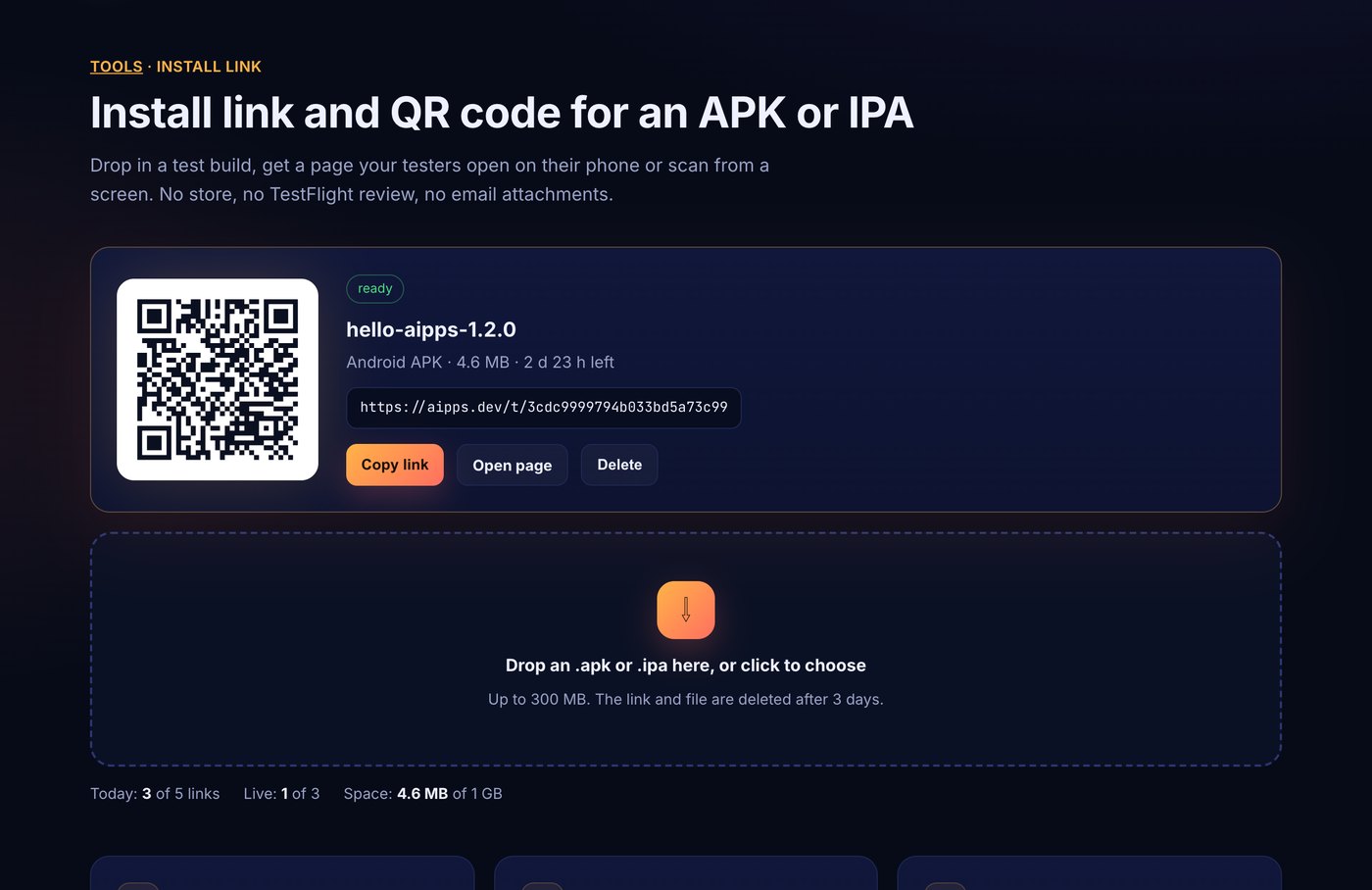
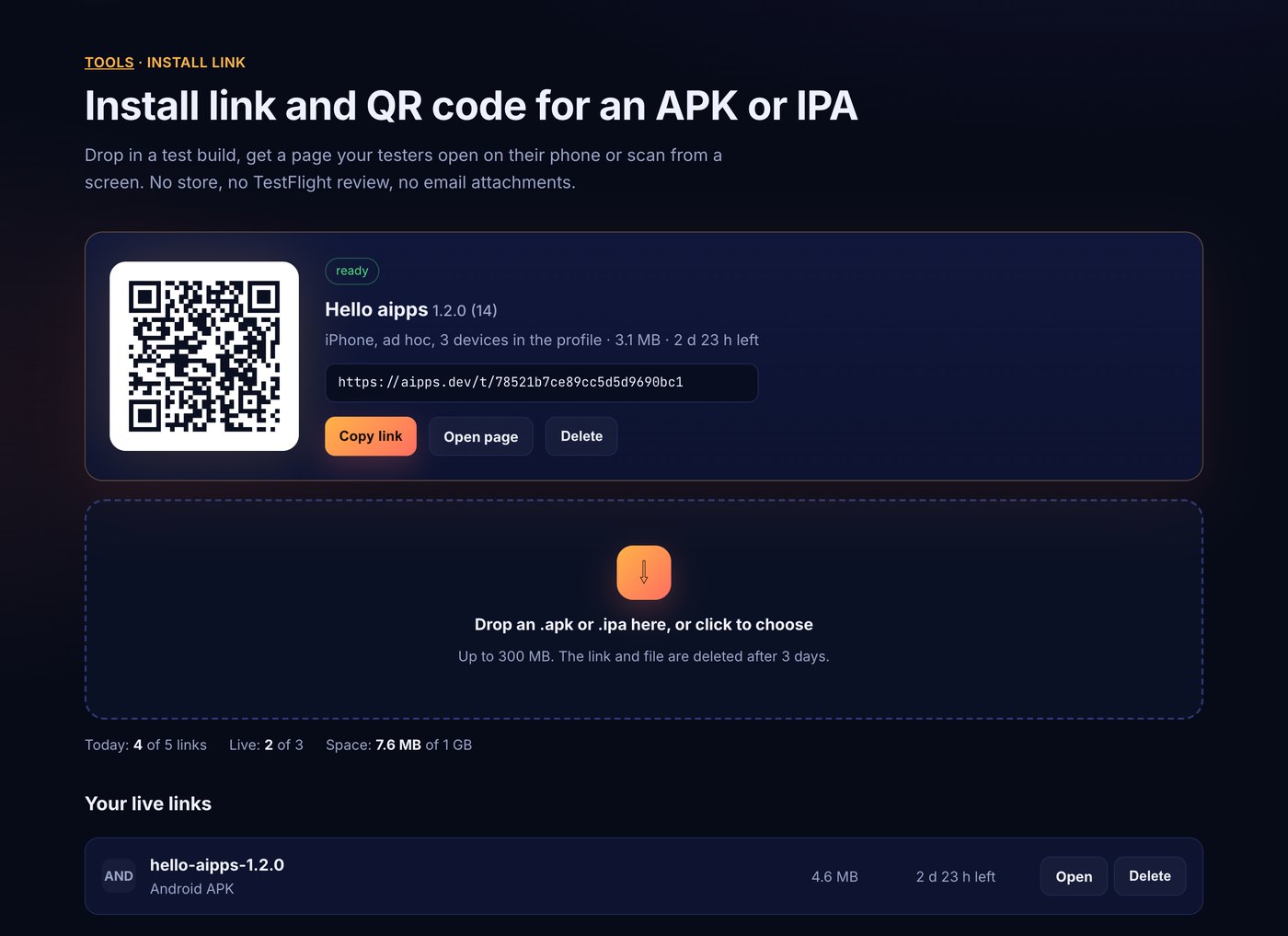
This is the whole path for both platforms, with the checks you can run on the file before you send the link, and what each error on the phone actually means. The examples use our own install-link tool and a small Expo test app, hello-aipps 1.2.0: a 4.6 MB APK and a 3.1 MB ad hoc IPA with three iPhones in its profile.
What a QR install link is
Three things sit behind the QR code: the build file on an HTTPS server, a small install page that says what the build is, and, for iPhones only, a manifest (a plist) that tells iOS where the IPA is and what its bundle id and version are. The QR code holds nothing but the page's address. Our tool keeps all three for 3 days and then deletes the file and the link, because a test build is out of date within days and a link that keeps working is a link that keeps getting forwarded.
Android: from APK to installed in four taps
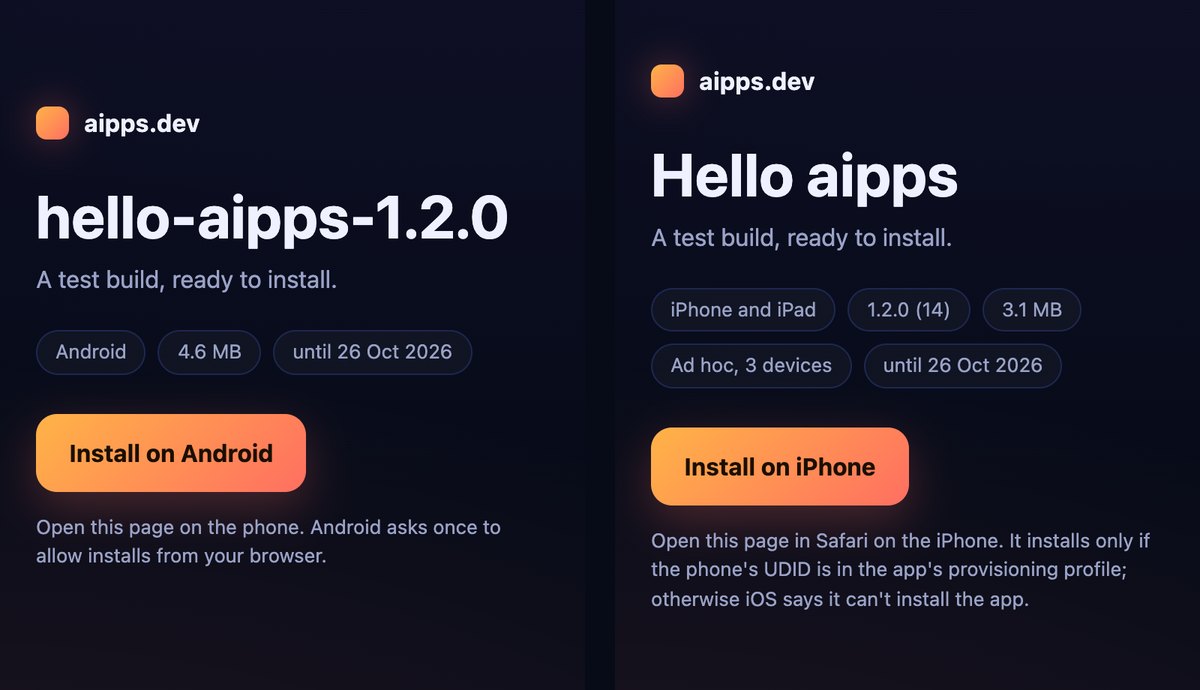
Any signed APK installs on any Android phone, debug builds included. The tester opens the link (or scans the QR with the camera), taps Install on the page, and the browser downloads the APK. The first time, Android asks to allow installs from that browser: since Android 8 this is a per-app switch, Settings > Apps > Special app access > Install unknown apps, and it's the browser that gets it, not the APK. Then the package installer shows the app's name and an Install button. Play Protect may scan the file and, for an app it hasn't seen, say so; that is a warning, not a block.
Don't send an .aab
An Android App Bundle is what Play wants, but no phone can install one: Play cuts it into per-device APKs on its servers. For a test link, build an APK (./gradlew assembleRelease, or eas build --profile preview with "buildType": "apk" in eas.json), or turn the bundle you already have into one universal APK:
Our tool refuses an .aab before the upload starts, for the same reason.
Check the APK before you send it
When Android says "App not installed"
The error text is the same for very different causes. In the order we see them:
Developer verification, from September 2026
Google now requires apps installed on certified Android devices to come from a developer who has verified their identity and registered the package name. Enforcement started in September 2026 in Brazil, Indonesia, Singapore and Thailand, and Google says it goes worldwide in 2027. Two things keep test builds working: installs with adb (which is what Android Studio does) are exempt, and a free limited distribution account can send an app to up to 20 devices without a government ID. If your testers are in those four countries and install from a link, register the package name now; for everyone else, plan it before 2027.
iPhone: ad hoc, the UDID and the 100-device year
An iPhone installs an app from outside the App Store only if the app's provisioning profile allows that exact phone. Inside every IPA is Payload/<App>.app/embedded.mobileprovision, and the signing type decides who can install it:
Our tool reads exactly these keys when you upload, which is how the page above can say "Ad hoc, 3 devices". You can check the same thing on a Mac:
Getting a tester's UDID and the 100-device limit
Settings doesn't show the UDID. The quickest ways: connect the phone to a Mac, select it in Finder and click the line under its name until the UDID shows, then right-click to copy; or in Xcode, Window > Devices and Simulators. Add it in Certificates, Identifiers & Profiles, then regenerate the ad hoc profile and rebuild: a profile only lists the devices that were registered when it was made, so the new tester's phone won't install the old build.
Apple allows 100 devices per product family (iPhone, iPad, Mac and the others are counted apart) per membership year. Disabling a device during the year doesn't give the slot back. Only at the start of the new membership year can the Account Holder or an Admin remove devices and get back to 100. A team that adds every tester's personal phone runs out by autumn; keep a few shared test phones in the list and send everyone else to TestFlight.
How the iPhone install happens
The Install button on an iPhone page is a link of the form itms-services://?action=download-manifest&url=https://.../manifest.plist. Safari hands it to iOS, which fetches the manifest, asks "Do you want to install Hello aipps?", downloads the IPA and puts the icon on the home screen with a progress ring. Both the manifest and the IPA must be on HTTPS with a valid certificate; plain HTTP or a self-signed certificate fails without a useful message. Development-signed builds also need Developer Mode on the phone (Settings > Privacy & Security, iOS 16 and later); ad hoc builds don't.
When the iPhone says it can't install
If the build is App Store signed, no link can fix it; our tool still keeps the file for download but doesn't offer an Install button, because the phone would refuse it.
Size and expiry
A test build link should be short-lived. Ours accepts files up to 300 MB (an IPA with an embedded game engine is often 150 MB or more), keeps the link and file for 3 days and then deletes both, and allows 5 uploads a day, 3 live links and 1 GB live per account. Delete a link as soon as a build is replaced: the old QR code then shows a page saying the build is gone, so nobody tests yesterday's bug.
Drop an APK or IPA and get an install page with a QR code in seconds. Free with an aipps.dev account; links last 3 days.
Make an install linkRelated: Google Play's 12 testers for 14 days rule for getting the same build into Play, and every App Store and Google Play icon and screenshot size in 2026 for the store listing that comes after testing.
Sources: Apple Developer, "Devices overview" (100 devices per product family per membership year, disabling and yearly reset), read 23 October 2026; Apple Developer, "Distributing your app to registered devices" and "Enabling Developer Mode on a device"; Android Developers, "Android developer verification" guide and blog (timeline, adb exemption, limited distribution accounts), read 23 October 2026; Android Developers, bundletool and apksigner documentation. Test builds, sizes and screenshots: our own install-link tool, 23 October 2026.